

What is n8n
n8n is a workflow automation platform that lets you connect apps, APIs, and AI models to build automated workflows. It’s commonly used to build AI agents, where a large language model is given tools and memory to carry out multi-step tasks. This page shows you how to use Xata with n8n. Since Xata is fully PostgreSQL-compatible, you can use it anywhere n8n supports PostgreSQL.Use Xata as memory for AI agents
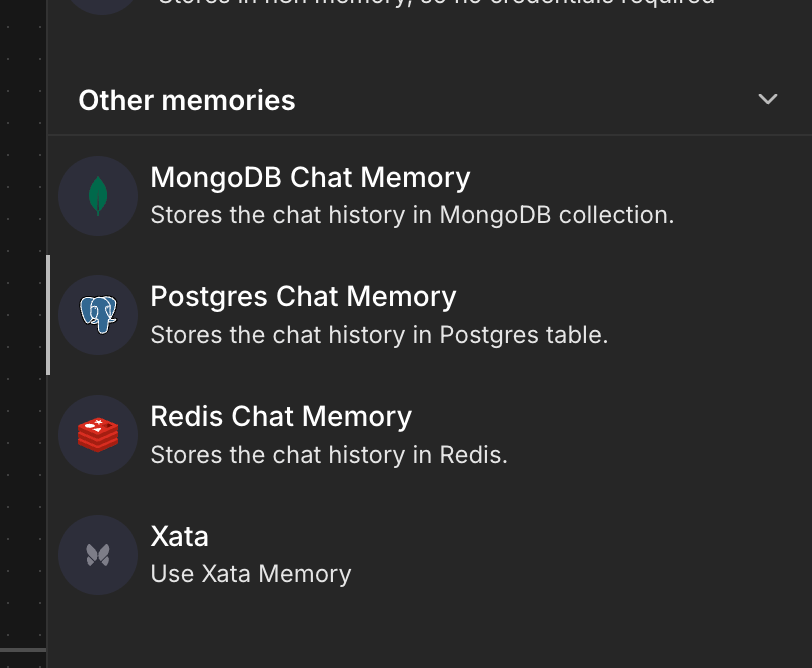
The most common way to use Xata with n8n is as the memory store for an AI agent, so that the agent can persist and recall chat history across runs.When adding a memory provider to your agent, n8n shows a dedicated Xata option. This option is out of date, so don’t use it. Instead, use the Postgres Chat Memory option and point it at your Xata branch, as described below.
Prerequisites
- A Xata account with a project and branch
- An n8n instance (cloud or self-hosted)
Steps
- In your n8n AI agent, add a memory provider and choose Postgres Chat Memory (not the Xata option).
- In the Xata console, open the Overview tab of your branch and copy the connection string shown at the top of the page.

In the Xata UI, you can copy each field (host, poassword, port, etc.) by simply clicking it.
-
Create a new PostgreSQL credential in n8n and copy the values from the connection string field by field:
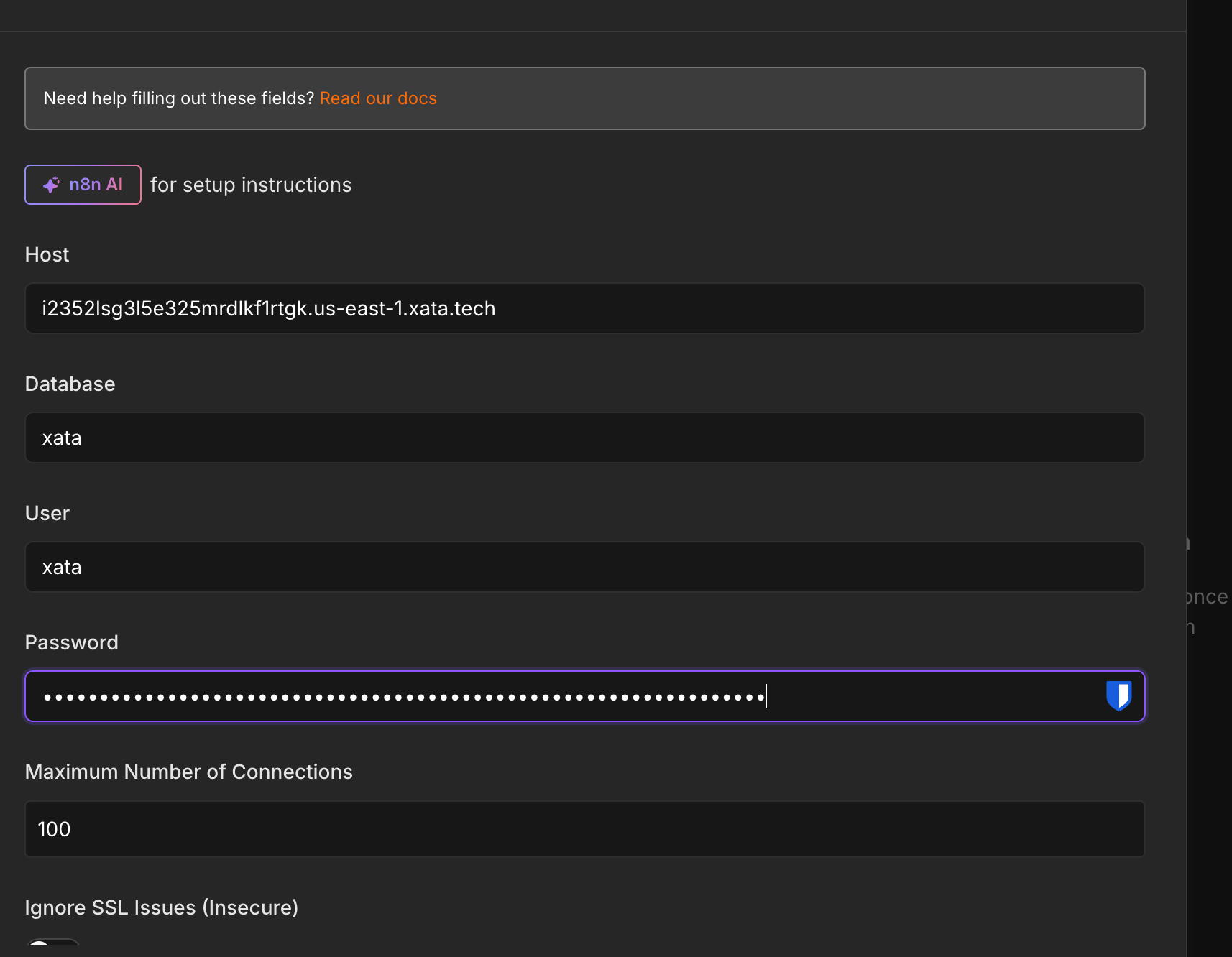
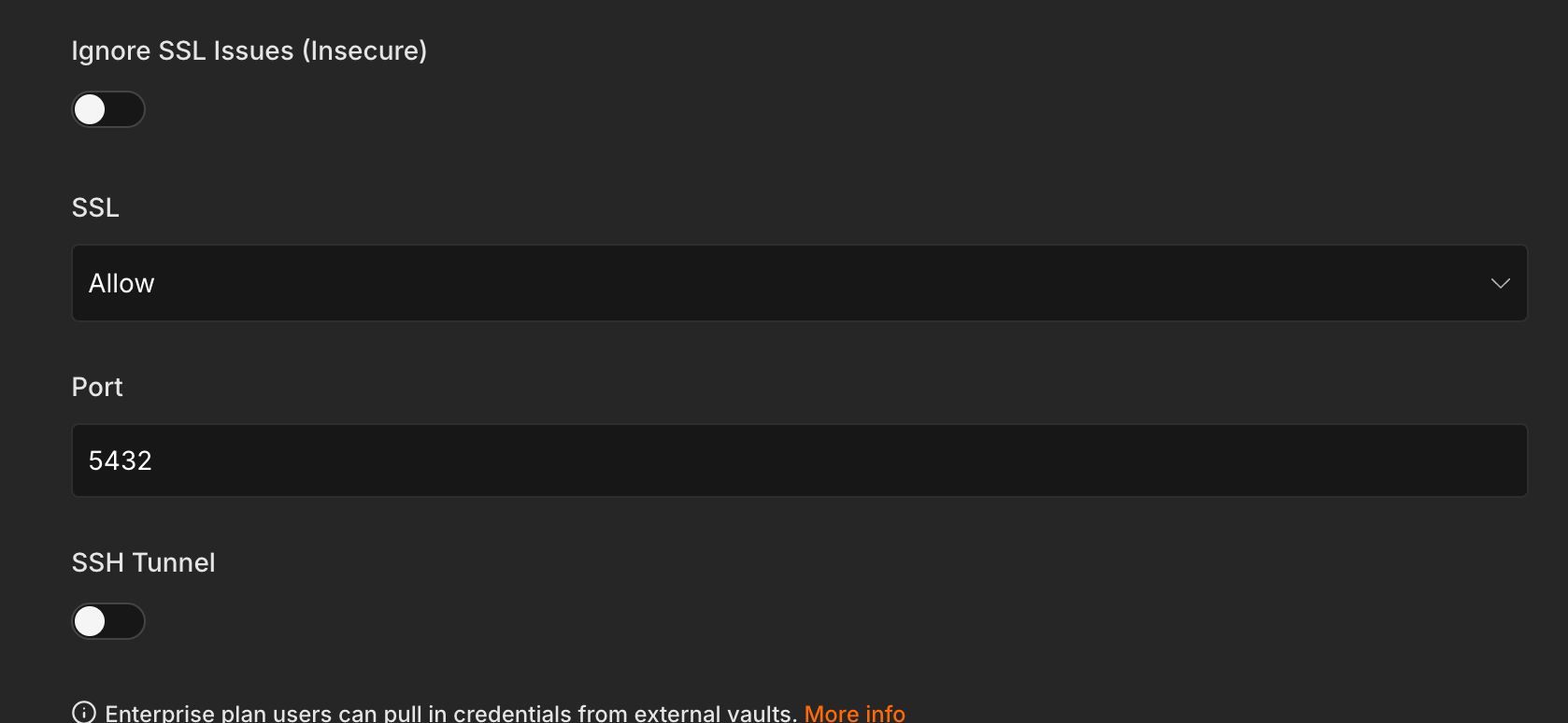
- Leave Ignore SSL Issues (Insecure) off and set SSL to Allow.
- Save the credential and test the connection. It should connect successfully, and your AI agent will now store its chat memory in Xata.
Next steps
- Enable scale-to-zero. In your branch settings, enable scale-to-zero (a suggested inactivity time is 1 hour) so the branch pauses when it’s not in use. This way you only incur compute costs while the branch is active. See Scale to zero for details.
- Move beyond the free trial. To keep using Xata after the free trial, add a credit card in the billing system. Xata charges only for the resources you use. There is no minimum fee.