The Xata GitHub App links a GitHub repository to a Xata project. After it is linked, pull requests in that repository can create Xata preview branches automatically, without storing a Xata API key in GitHub Actions. Use the GitHub App when you want Xata to manage the preview branch lifecycle for a repository. If you need a fully custom CI workflow, use the GitHub Actions pull request workflow instead.

Demo

How it works

  1. Install the Xata GitHub App in a GitHub user account or organization.
  2. Link that GitHub App installation to a Xata organization.
  3. In the Xata project settings, choose the GitHub repository and the Xata root branch.
  4. When a pull request is opened or reopened, Xata creates a child branch from the selected root branch.
  5. When the pull request is closed, Xata deletes the preview branch if it is still a child of the selected root branch.
Xata posts or updates a pull request comment when it creates, finds, or deletes the preview branch.

Prerequisites

  • Access to the Xata organization and project that you want to link.
  • Permission to install or request GitHub Apps for the GitHub account or organization that owns the repository.
  • The Xata GitHub App must be granted access to the repository you want to link.
If you are not a GitHub organization owner, GitHub may submit an installation request instead of installing the app immediately. A GitHub organization owner must approve the request before you can link a repository in Xata.

Install the GitHub App

  1. Open the Xata Console.
  2. Go to the project you want to connect.
  3. Open Project Settings.
  4. In GitHub Repository, click Install GitHub App.
  5. In GitHub, choose the account or organization where the app should be installed.
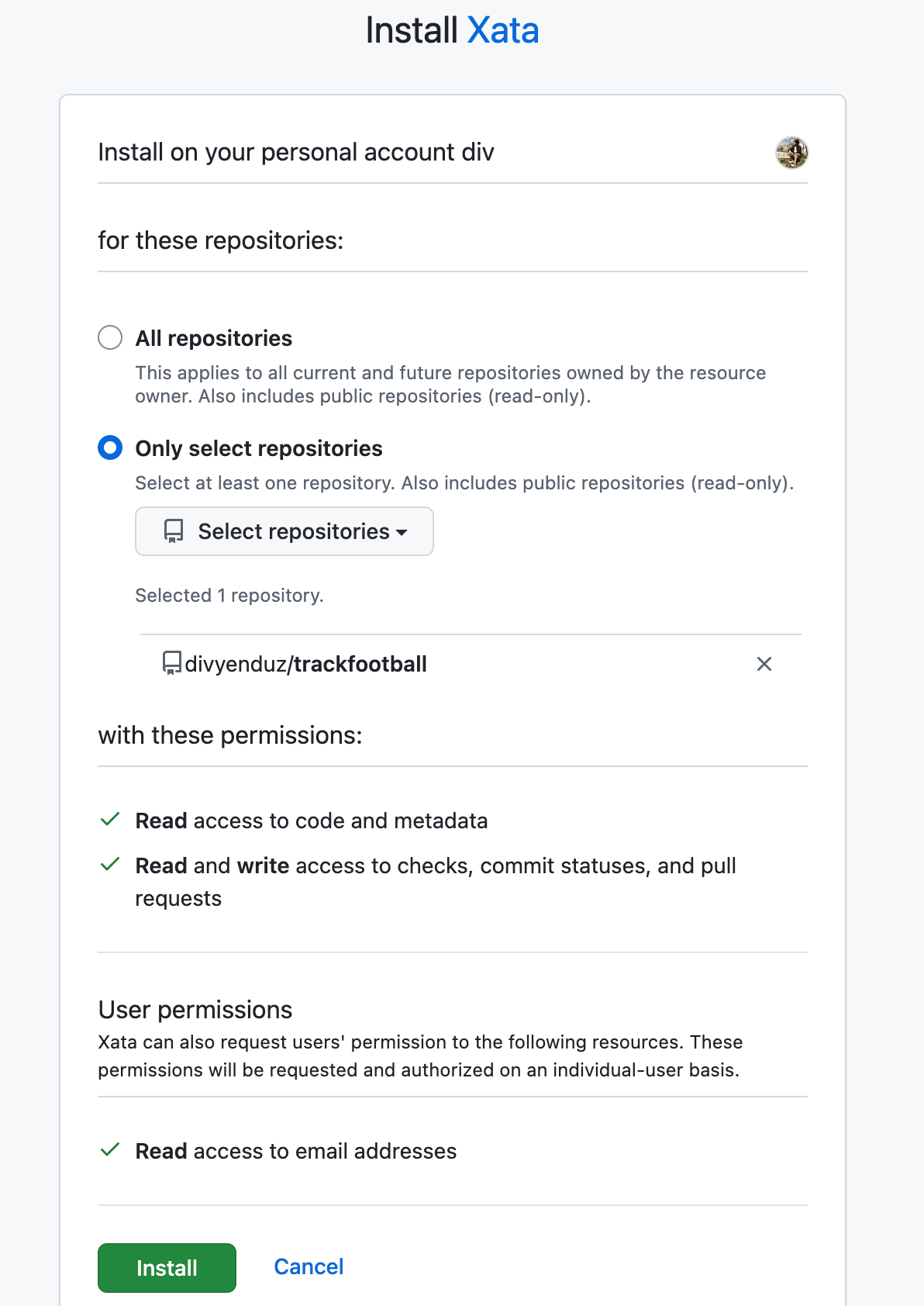
  6. Choose whether Xata can access all repositories or only selected repositories.
  7. Complete the GitHub installation flow.
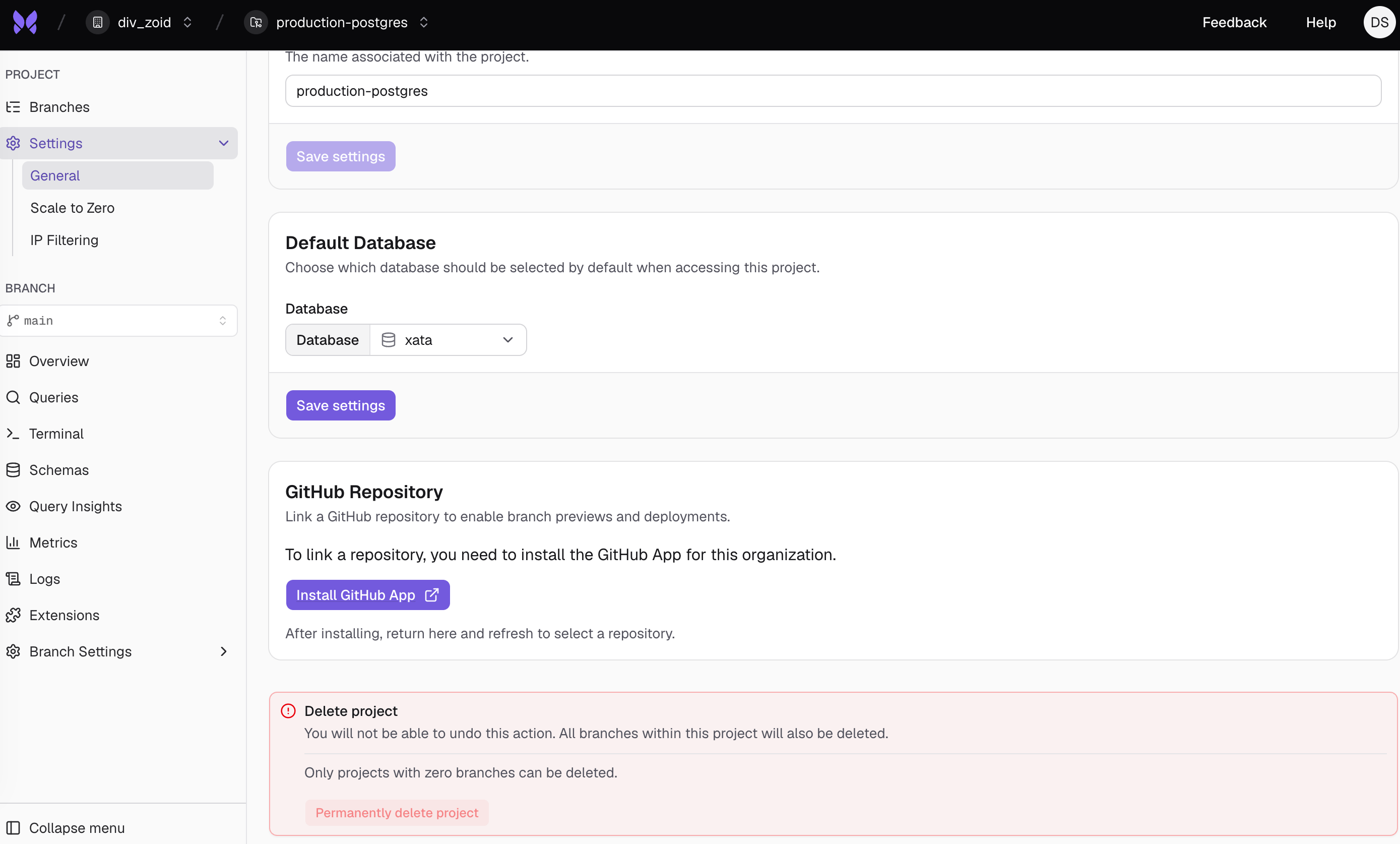
Project settings page showing the GitHub Repository section and Install GitHub App button GitHub lets you grant access to all repositories or only selected repositories. Select only the repositories that should be able to create Xata preview branches. GitHub App installation page showing repository selection and requested permissions After installation, Xata links the GitHub App installation to your Xata organization and returns you to the project settings page. If you installed the app directly from GitHub, Xata asks which Xata organization should own the installation before you continue. After the GitHub App is installed, configure the repository mapping from the project settings page:
  1. Open Project Settings.
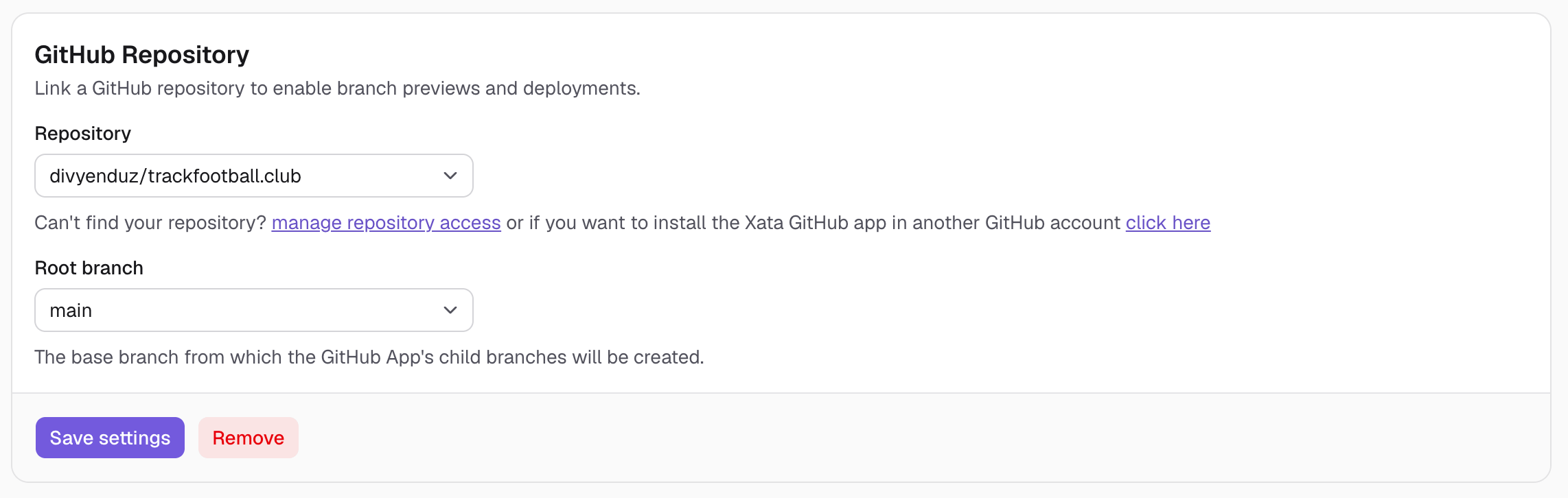
  2. In GitHub Repository, choose the repository to link.
  3. Choose the Root branch.
  4. Click Save settings.
GitHub Repository settings showing repository and root branch selectors The root branch is the base Xata branch from which GitHub App preview branches are created. For example, if you choose main, each preview branch starts as a child of main and contains the schema and data from main at the moment Xata creates the branch.
A Xata project can have one linked GitHub repository. A GitHub repository can be linked to one Xata project at a time.

Pull request behavior

When a pull request is opened or reopened in the linked repository, Xata:
  • Finds the repository mapping for the GitHub repository.
  • Creates a child branch from the configured root branch.
  • Names the Xata branch after the pull request’s source branch.
  • Posts or updates a comment on the pull request with the preview branch status.
If a branch with that name already exists, Xata does not overwrite it. It comments on the pull request that the branch already exists. When a pull request is closed, Xata:
  • Finds the Xata branch with the same name as the pull request’s source branch.
  • Deletes it only if it is a child of the configured root branch.
  • Posts or updates a comment on the pull request when the preview branch is deleted.
Xata checks the parent branch before deletion so that closing a pull request does not delete an unrelated branch that happens to have the same name. The GitHub App handles pull request open, reopen, and close events. It does not recreate or refresh the preview branch on every push to an already-open pull request.

Manage repository access

If a repository does not appear in the repository selector, the GitHub App probably does not have access to it. From the project settings page, use the manage repository access or manage installations link to open the GitHub App installation settings. In GitHub, grant the Xata GitHub App access to the repository, then return to Xata and refresh the project settings page.

Manage installations

Use the GitHub App installations page in Xata to view the GitHub App installations linked to your Xata organizations. From there, you can:
  • Open GitHub to manage repository access for an installation.
  • Install the Xata GitHub App in another GitHub account.
  • Uninstall a GitHub App installation.
Uninstalling the GitHub App stops GitHub App updates for linked repositories that depend on that installation. The uninstall is synchronized through a GitHub webhook, so it may take a short time for Xata to finish updating its installation records. Existing preview branches are not deleted automatically when you uninstall the app.

Remove a repository mapping

To stop creating preview branches for a project without uninstalling the GitHub App:
  1. Open Project Settings.
  2. Find GitHub Repository.
  3. Click Remove.
  4. Confirm the removal.
Removing the mapping unlinks the GitHub repository from the Xata project. The GitHub App installation remains available for other projects or repositories. Existing preview branches are not deleted automatically when you remove the mapping.

GitHub Actions comparison

The GitHub App and the GitHub Actions workflows solve related but different problems:
Use caseRecommended approach
Automatically create and clean up one preview branch per pull requestXata GitHub App
Run custom commands, migrations, tests, deployment steps, or comments in CIGitHub Actions workflow
Bulk cleanup of branches by naming convention or ageBulk delete workflow
You can still run GitHub Actions alongside the GitHub App. For example, let the GitHub App create the Xata preview branch, then use your own CI workflow to run tests or deploy a preview environment with that branch’s connection string.

Troubleshooting

The installation request is pending

If GitHub shows that the installation was requested, ask a GitHub organization owner to approve the request. Xata cannot link repositories from the installation until GitHub approves it.

The repository is not listed

Open the GitHub App installation settings and grant Xata access to the repository. If you have multiple GitHub App installations, make sure you are managing the installation for the GitHub account or organization that owns the repository.

No preview branch is created

Check that the repository is linked in the Xata project settings and that the selected root branch still exists. Xata only reacts to pull request events for repositories that have a saved mapping.

A branch already exists

Xata does not replace an existing branch with the same name as the pull request’s source branch. Delete or rename the existing branch if you want Xata to create a new preview branch for that pull request.

A closed pull request did not delete a branch

Xata deletes a branch on pull request close only when the branch is a child of the configured root branch. This protects manually created or unrelated branches that happen to share the pull request source branch name.