

VERCEL_GIT_COMMIT_REF, and a custom build script passes it to xata branch url to retrieve the connection string.
This guide uses Next.js as an example. If you use another framework or package manager, adapt the environment file and build commands to your application.
How it works
- You push a Git branch and open a pull request.
- The Xata GitHub App creates a Xata branch named after the pull request’s source branch.
- Subsequent pushes reuse that Xata branch. The GitHub App does not recreate or refresh it on every push.
- During each preview build, Vercel sets
VERCEL_GIT_COMMIT_REFto that same branch name. - The build script retrieves the Xata branch’s connection string and makes it available to the application as
DATABASE_URL. - When the pull request closes, the Xata GitHub App deletes the Xata branch.
Prerequisites
- Install the Xata GitHub App and link the repository to a Xata project.
- Connect the same GitHub repository to a Vercel project.
- Configure your application to read its PostgreSQL connection string from
DATABASE_URL.
This guide uses the Xata GitHub App to manage the branch lifecycle. You can use the GitHub Actions pull request workflow instead, but its example names branches
<source-branch>_<pull-request-number>. Adjust the branch name in the Vercel script to match your workflow.Create an API key for Vercel
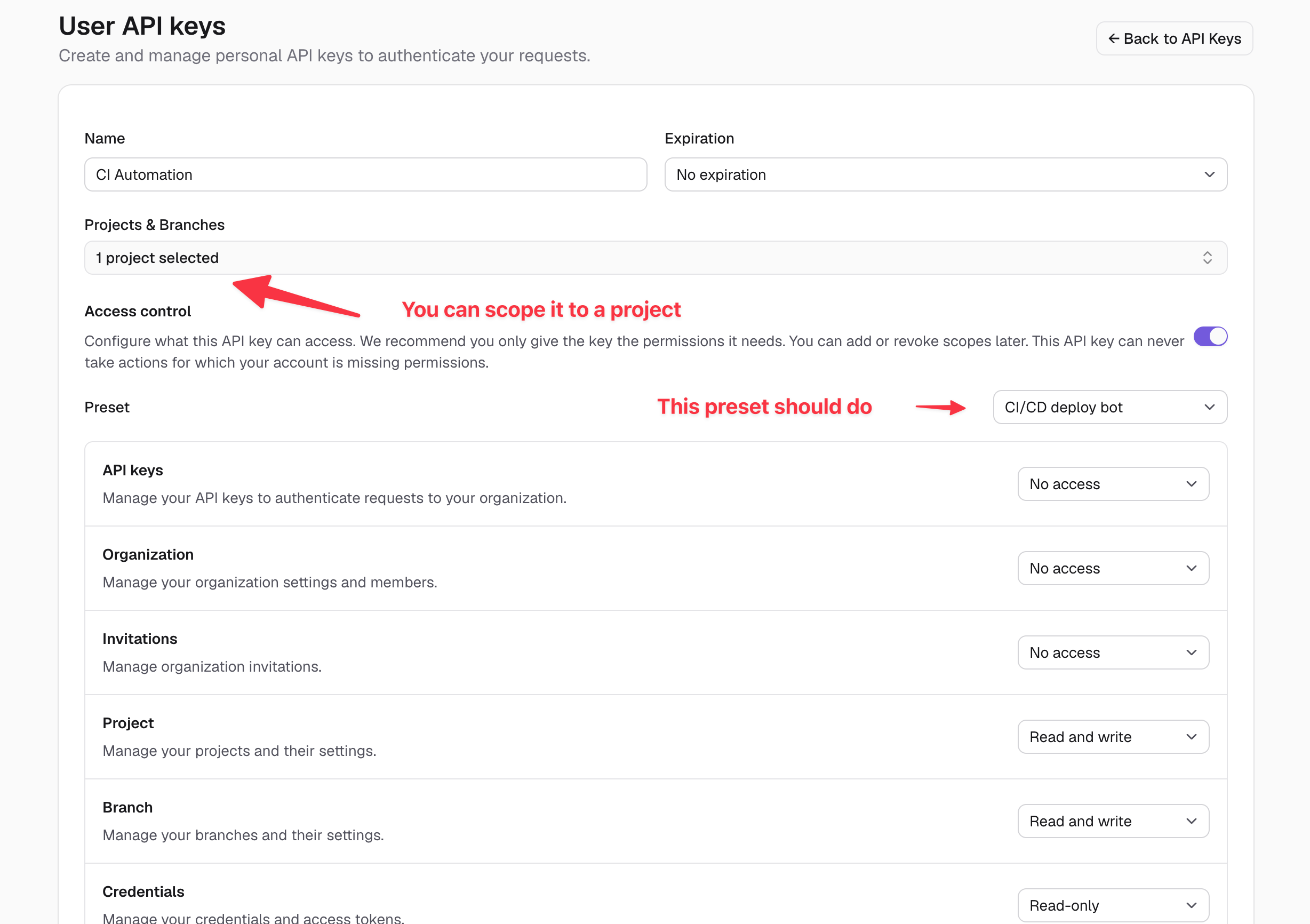
The Vercel build uses the Xata CLI to find the preview branch and retrieve its connection string. Create a dedicated API key for this automation:- Open User API keys in the Xata Console.
- Click New API Key.
- Give the key a descriptive name, such as
Vercel preview deployments, and choose an appropriate expiration. - Under Projects & Branches, select the Xata project linked to the repository. Select the project rather than an individual branch so the key can access preview branches created later.
- Enable Access control and select the CI/CD deploy bot preset.
- Create the key and copy it. The full value is shown only once.
Configure Vercel environment variables
In the Vercel project, open Settings > Environment Variables and add these variables for the Preview environment:
The Xata CLI automatically uses these standard environment variables for authentication and project selection. You do not need to install the CLI locally if you copy the organization and project IDs from a Console URL such as
https://console.xata.io/organizations/<organization-id>/projects/<project-id>.
Add
XATA_API_KEY to Vercel because the connection-string lookup runs in the Vercel build. If you use GitHub Actions to manage the branch lifecycle, also add the key as a GitHub Actions secret named XATA_API_KEY for that workflow.DATABASE_URL separately in Vercel’s Production environment. For example, get the primary connection string for the Xata production branch with:
DATABASE_URL dynamically for preview deployments. Production deployments continue to use the value configured in Vercel.
Enable Vercel system environment variables
The script requiresVERCEL_ENV and VERCEL_GIT_COMMIT_REF. Vercel provides both as system environment variables.
In the Vercel project’s Environment Variables settings, select Enable access to System Environment Variables. VERCEL_GIT_COMMIT_REF contains the Git branch that triggered the deployment.
Add the build script
Createscripts/vercel-build.sh in your application repository:
set -x) is intentionally disabled so the connection string is not written to Vercel build logs.
The db:migrate command applies the application’s migrations to the preview branch. Remove that line if your application does not have a db:migrate script.
The GitHub App does not recreate the Xata branch on every push. Keeping the branch for the lifetime of the pull request preserves its branch ID and connection URL. Xata does not currently provide a branch-reset operation; deleting and recreating the branch would give it a new ID and URL.
The lookup fails if the matching Xata branch cannot be found. Do not add a fallback to the production connection string: a failed preview build is safer than a preview deployment that writes to production.
The
.env.production line is specific to Next.js. If you use another framework, use its supported build-time mechanism to include DATABASE_URL in server-side deployment output. Never expose the connection string through a public or client-prefixed environment variable.package.json while keeping the existing build script unchanged:
Override the Vercel build command
In Vercel:- Open the project and go to Settings > Build and Deployment.
- Under Framework Settings, enable Override for Build Command.
- Set the command to
pnpm vercel-build. - Save the settings and redeploy.
npm run vercel-build instead.
Vercel may detect a
vercel-build script automatically for some frameworks, but this behavior is not documented and may change. Set the Build Command explicitly in the Vercel project settings.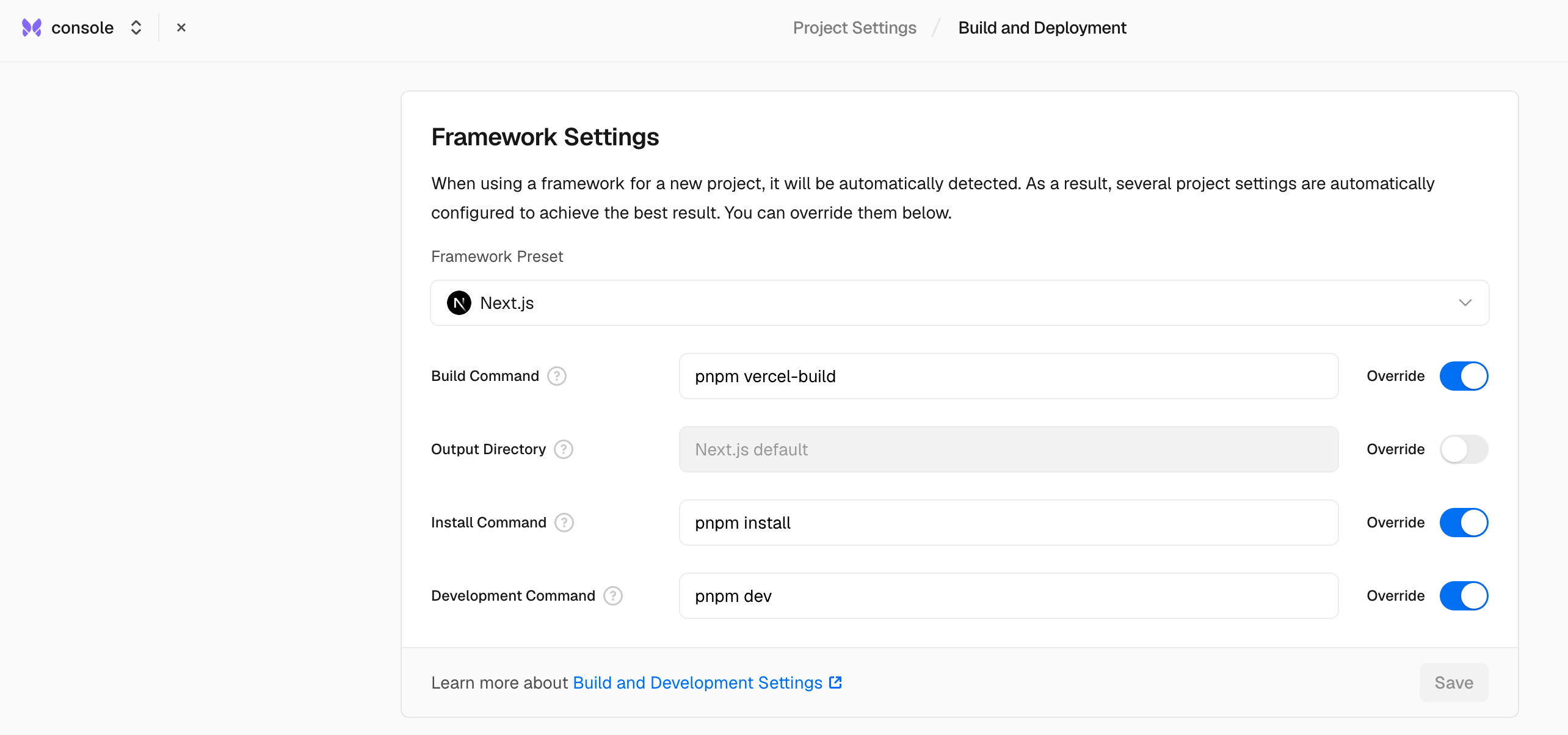
Verify the integration
- Open a pull request in the linked GitHub repository.
- Wait for the Xata GitHub App’s pull request comment confirming that the preview branch was created.
- Redeploy the Vercel preview if its first build started before the Xata branch was created.
- Check the Vercel build log for the Xata branch name and a successful application build. The connection string itself should not appear in the log.
- Open the preview deployment and verify that it reads from or writes to the preview branch, not the production branch.
Troubleshooting
VERCEL_GIT_COMMIT_REF is not set
Select Enable access to System Environment Variables in the Vercel project’s environment variable settings, then redeploy.
The Xata branch cannot be found
The GitHub App creates a branch when a pull request is opened or reopened, while Vercel can build a Git branch before a pull request exists. Confirm that the GitHub App posted a successful branch-creation comment, then redeploy the Vercel preview. Also check that the same repository is linked to both projects and that your branch-lifecycle automation uses the expected naming convention.The Xata CLI cannot authenticate or select a project
Confirm thatXATA_API_KEY, XATA_ORGANIZATION_ID, and XATA_PROJECT_ID are set for Vercel’s Preview environment. Make sure the API key is scoped to the linked Xata project, not only to its root branch.
The preview still connects to the production database
Confirm that your server-side application readsDATABASE_URL and that your framework includes the dynamically generated value in its deployment output. For Next.js, keep the .env.production step before next build.