

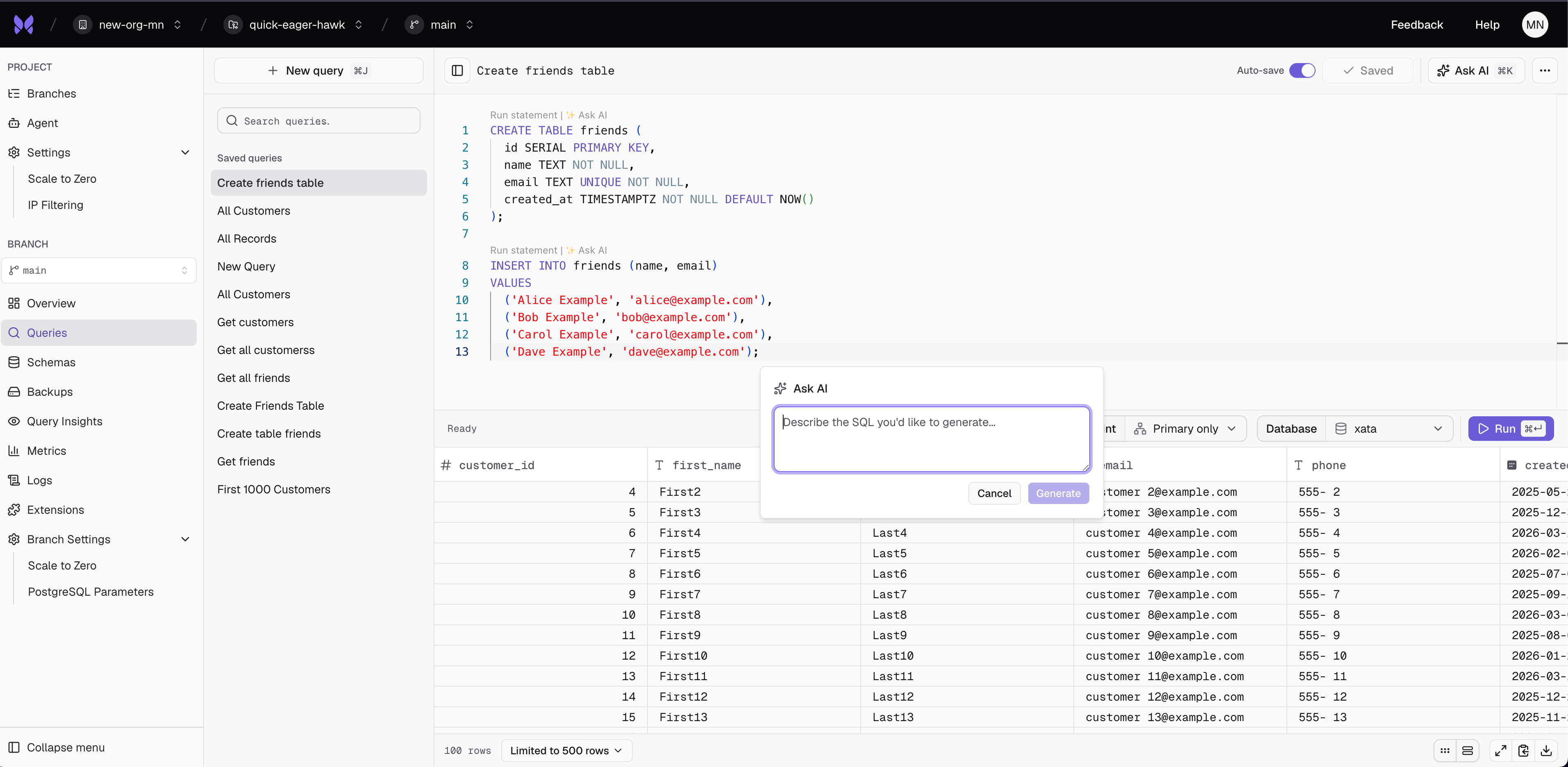
Run statements
Execute SQL queries directly in the browser with syntax highlighting and auto-completion.- Autocomplete makes it easy to create queries without intimate schema knowledge.
- Run multiple statements separately or all at once.
- Select from multiple databases in the branch to run queries against.
- Perform exploratory queries as well as DDL statements.
- Highlight a portion of the editor and use Run selected to execute only the highlighted text.
- The run button reflects execution state: ready, running, completed, or error.
Keyboard shortcuts
Generate SQL with Ask AI
Use AI-powered SQL generation to create queries from natural language descriptions. Ask AI opens as an anchored popover in the editor so you can iterate on prompts without leaving your current statement.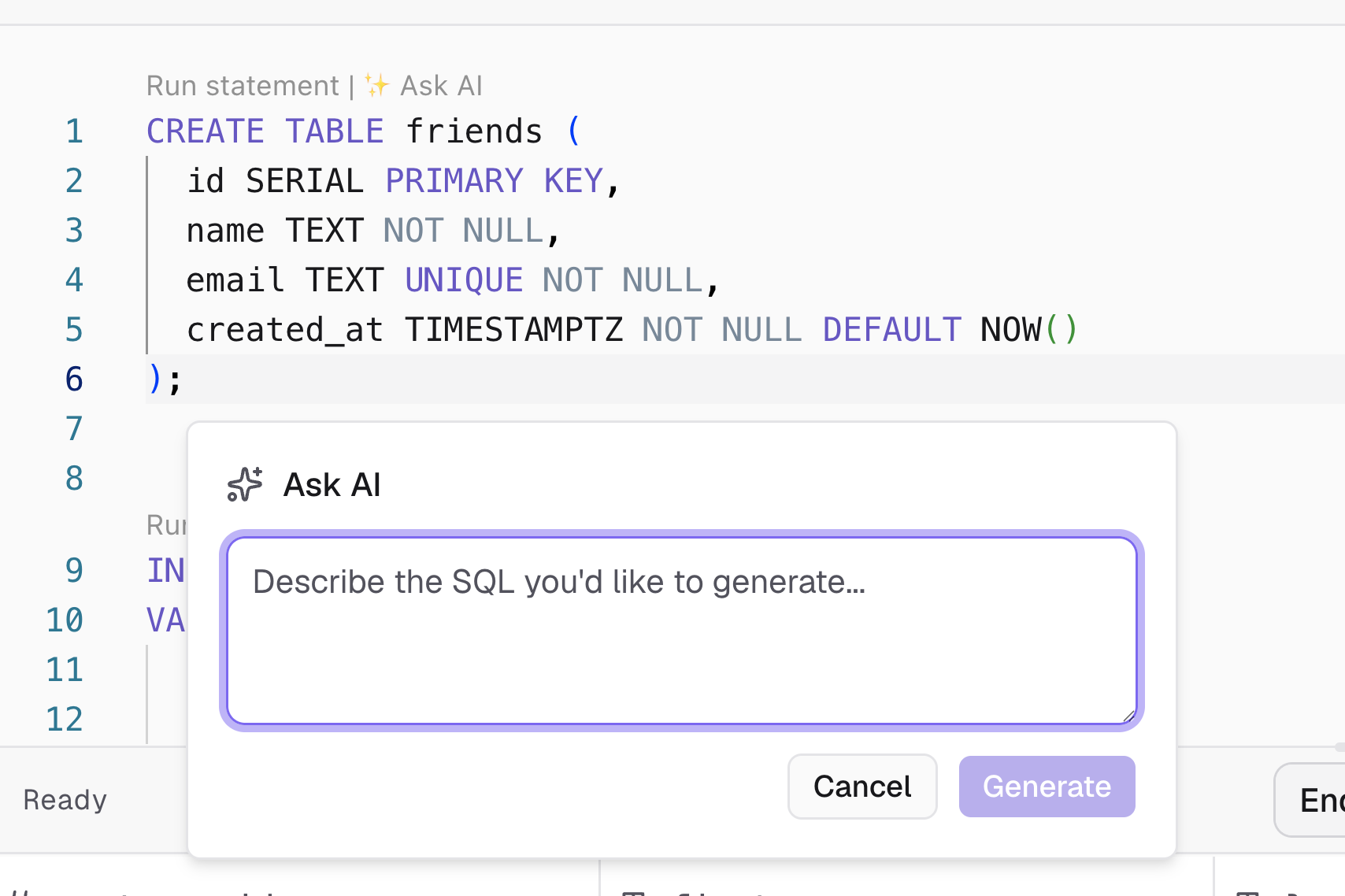
⌘K, describe what you want in plain English, and insert the generated SQL into the editor.
Save and manage queries
Every query can be saved for later use. The saved queries sidebar supports search, rename and delete actions from a context menu, and shows a marker on queries with unsaved changes.Draft and save-as

- With Auto-save off, use Save as… to name and create the query. The save button highlights when there are unsaved changes.
- With Auto-save on, drafts are persisted automatically as you type and a Saving / Saved indicator reflects the current state.
Toolbar actions
The query toolbar includes quick actions for save, rename, delete, and Ask AI, along with a save status indicator. Renaming is also available by clicking the query name.View results
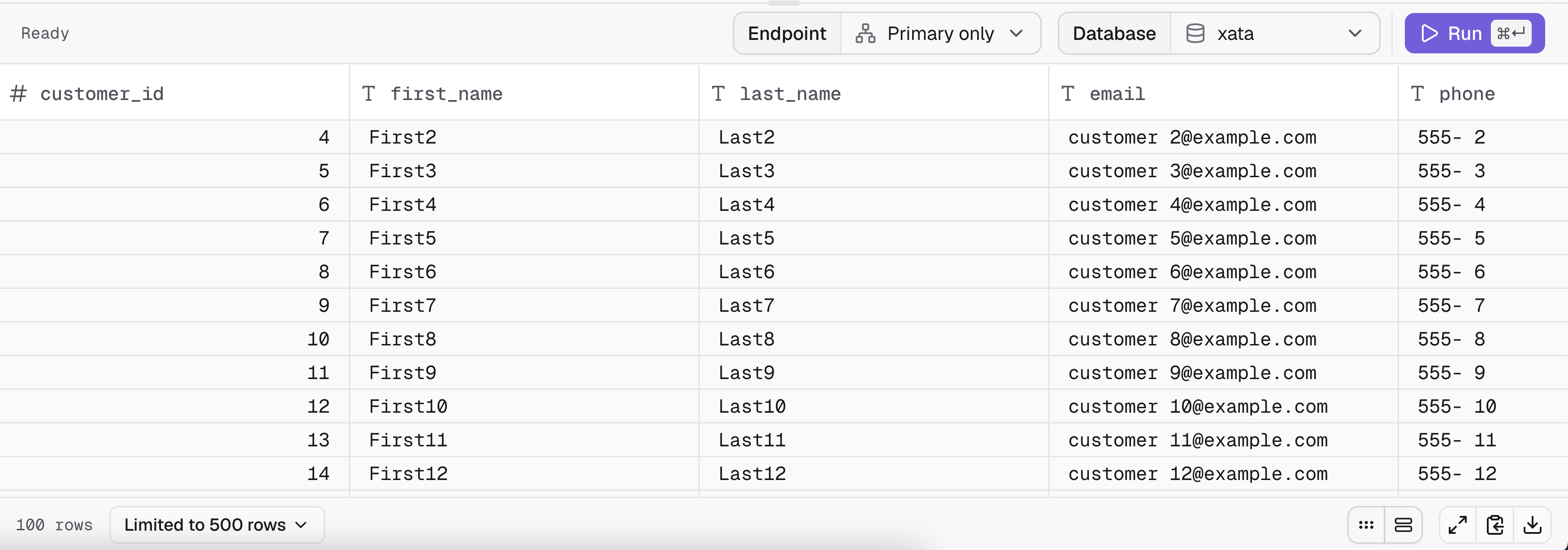
- Multi-statement tabs — when multiple statements are run, each result is shown in its own tab.
- Explain plans —
EXPLAINoutput is auto-detected and rendered in a dedicated monospace view instead of a table. - Statement success — non-SELECT statements (INSERT, UPDATE, CREATE TABLE, etc.) show a success message with the number of affected rows.
- Status and row counts — each tab shows the statement status and the number of rows returned.
- Full-screen mode — expand the results panel to occupy the full workspace.
Display options
Customize how rows are rendered from the results toolbar. These preferences are stored in local storage.- Striped rows — alternate row backgrounds for readability (enabled by default).
- Compact density — reduce row padding to show more data at once.
- Row limit — cap the number of rows rendered client-side. Choose between 100, 500, 1000, or no limit. When a result exceeds the limit, a notice indicates the cap.
Export results
- Copy as JSON — copy the active tab’s rows to your clipboard as JSON.
- Download as CSV — export the active tab’s rows to a CSV file.
Performance warnings
When a statement may be slow or expensive, a non-blocking, dismissible warning floats at the bottom of the editor. Dismissed warnings are remembered in local storage.Editor preferences
The following preferences persist in local storage and apply across sessions on the same browser:- Auto-save
- Performance warnings
- Striped rows
- Compact density
- Row limit