

Xata documentation
Branch-native Postgres
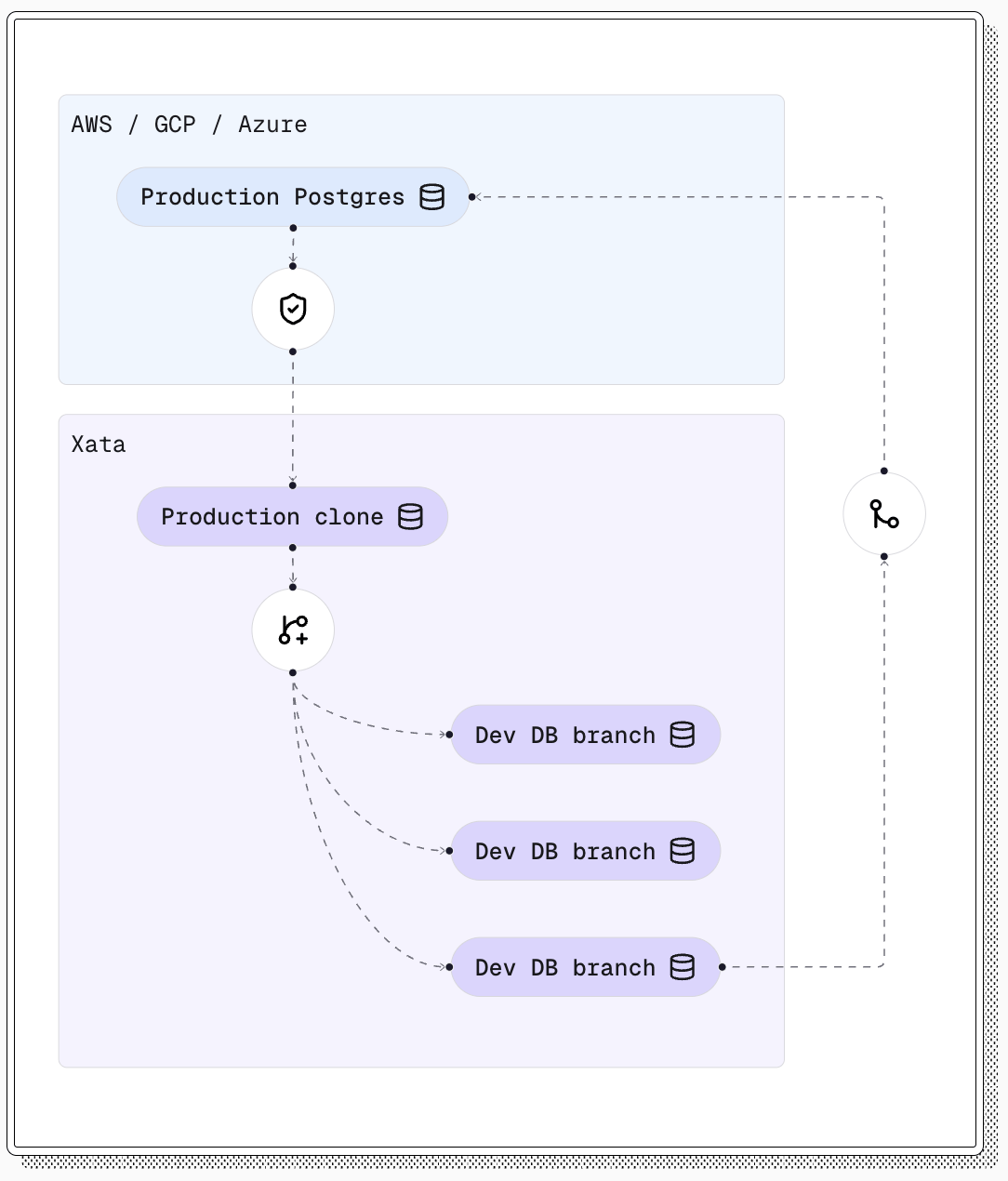
Build with real production data safely. Xata gives teams instant Postgres branches, anonymized clones, and controlled schema changes for faster development workflows.
Core concept
Branching
Create copy-on-write database branches in seconds without duplicating storage.
Tutorial
Production Clone
Build realistic staging and development data sets with PII removed.
Guide
AI Agents
Give coding agents isolated Postgres branches for safe migrations, tests, and data work.
Core concept
Schema Changes
Apply and roll back PostgreSQL schema changes with controlled migration workflows.
Reference
API Reference
Manage organizations, projects, branches, and platform resources programmatically.
Reference
CLI Reference
Work with auth, projects, branches, clone, roll, stream, and status commands.
PlatformProjects, branches, logs, metrics, extensions, and compute.ReadMigrationsMove PostgreSQL data from AWS, GCP, Azure, Neon, Supabase, or self-hosted sources.ReadAutomationsAdd Xata branches and clone workflows to CI and Kubernetes.ReadAI AgentsUse Claude Code, Codex, Cursor, Copilot, and other coding agents with isolated branches.ReadIntegrationsConnect with Drizzle, Railway, and standard PostgreSQL tooling.ReadChangelogTrack platform, console, and CLI updates.ReadSupportGet help with setup, migration, or production usage.Contact